
Docs
Everything you need to know about MonoBar, on one page.
Requirements
Apple Silicon Mac required. Designed for macOS 27. Tested on macOS 26 and 27. Supports macOS 14 Sonoma and later.
Install
- Download MonoBar (2,540,893 bytes).
- Unzip it — most Macs do this automatically.
- Drag MonoBar.app to your Applications folder.
- Double-click to open. macOS may ask once whether you're sure you want to open an app downloaded from the internet — that's the normal prompt for any downloaded app. Click Open.
MonoBar is signed with a Developer ID certificate and notarized by Apple. After the standard first-open confirmation, it opens without unidentified-developer workarounds.
Verifying the download (optional)
If you'd like to confirm the file is exactly what was published, run:
shasum -a 256 ~/Downloads/MonoBar-1.2.0-macos.zipIt should print:
6e8a6e95d052836e894540f335de6717b59cddecdd5dabdee004e0b633a68613You can also check the signature:
codesign --verify --deep --strict /Applications/MonoBar.app
spctl --assess --type execute --verbose=2 /Applications/MonoBar.app
The second command should report source=Notarized Developer ID.
First launch
MonoBar appears in your menu bar as a small [|] symbol. It starts paused — scheduled monitoring does not begin until you press Start.
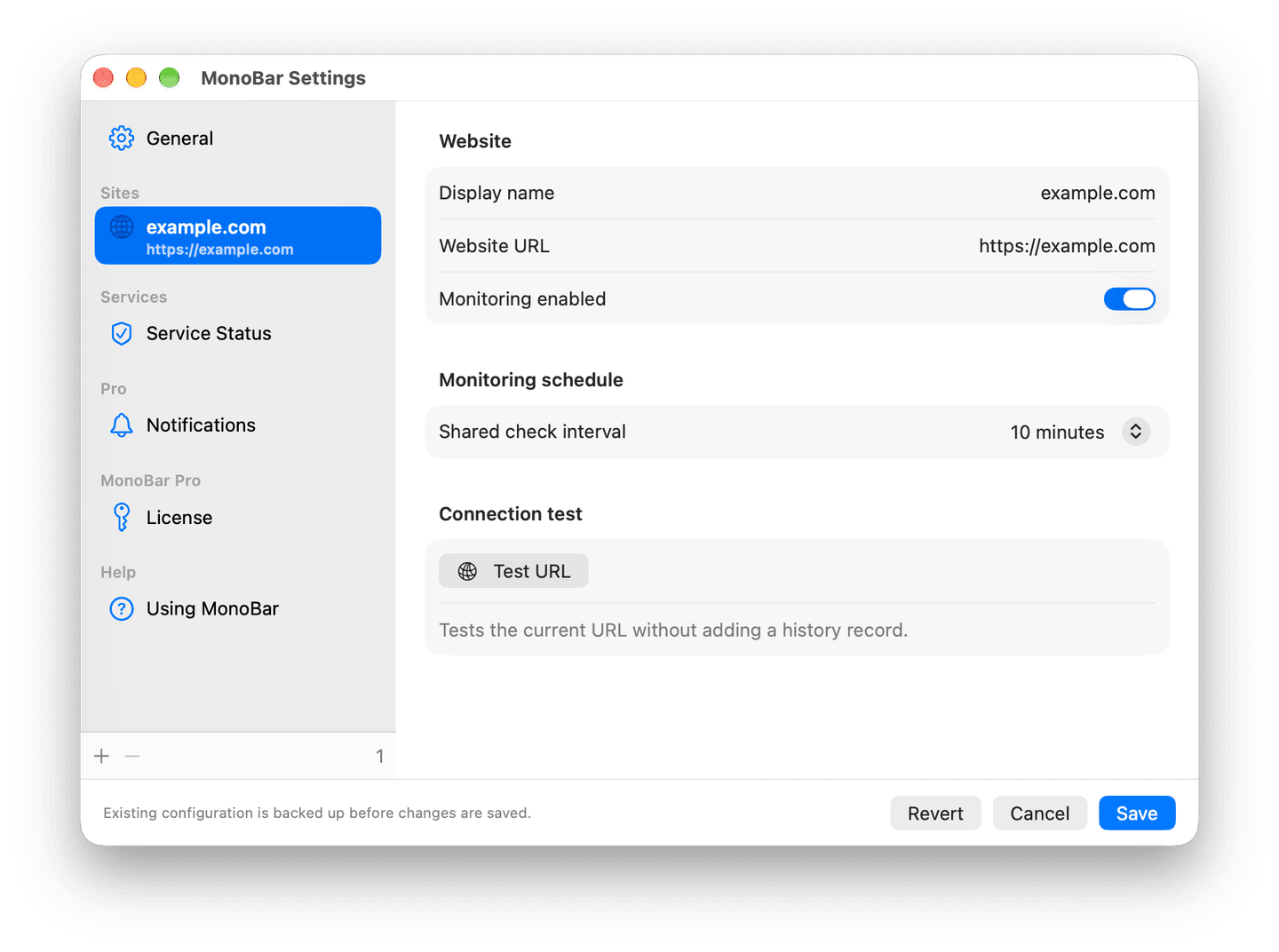
- On first launch, MonoBar opens Website Setup. If you close it, click the menu-bar symbol, then the gear to open Settings.
- Add your website — a public
https://address. Use Test URL to check it without adding anything to history. - Pick a check interval (10 minutes is a sensible default).
- Click Save, close Settings, and press Start.
That's setup. The menu-bar dashboard now shows current status, response time, sampled uptime, recent history, and recent checks.
Start, stop, check now
Monitoring runs only while MonoBar is open and started. Stop ends scheduled checking immediately but keeps MonoBar in the menu bar; Check now still runs one deliberate check on demand while scheduled monitoring is paused; Quit ends MonoBar’s network activity and removes the menu-bar icon. Eligible update checks are a separate optional exception while monitoring is paused, as described under Updating.
After quitting, reopen MonoBar from Applications, Launchpad, or Spotlight. If you prefer a permanent launcher, drag MonoBar from Applications to the Dock.
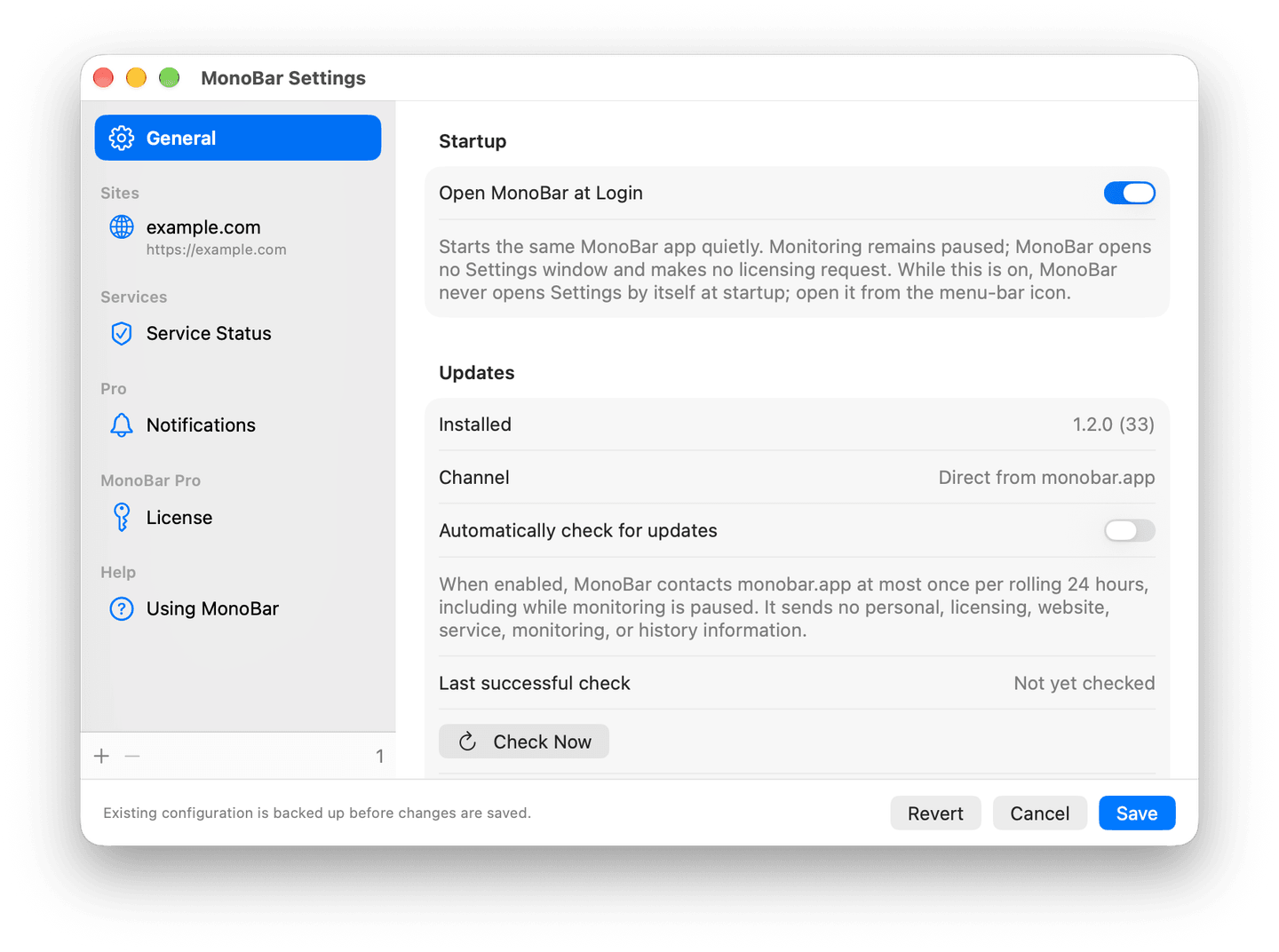
To open MonoBar automatically when you sign in, turn on Open MonoBar at Login in General settings. It opens without a window and remains paused until you press Start.
Understanding status and history
- UP / DOWN reflects the most recent check's result, with the HTTP status and response time listed per check.
- Sampled uptime is the share of successful checks in your recent history — samples taken while MonoBar was running, not a 24/7 guarantee.
- Unknown is used when an optional service status feed can't be reached or understood. Website status reflects the request result from this Mac; MonoBar doesn't distinguish a local network outage from a site failure.
Service Status (optional)
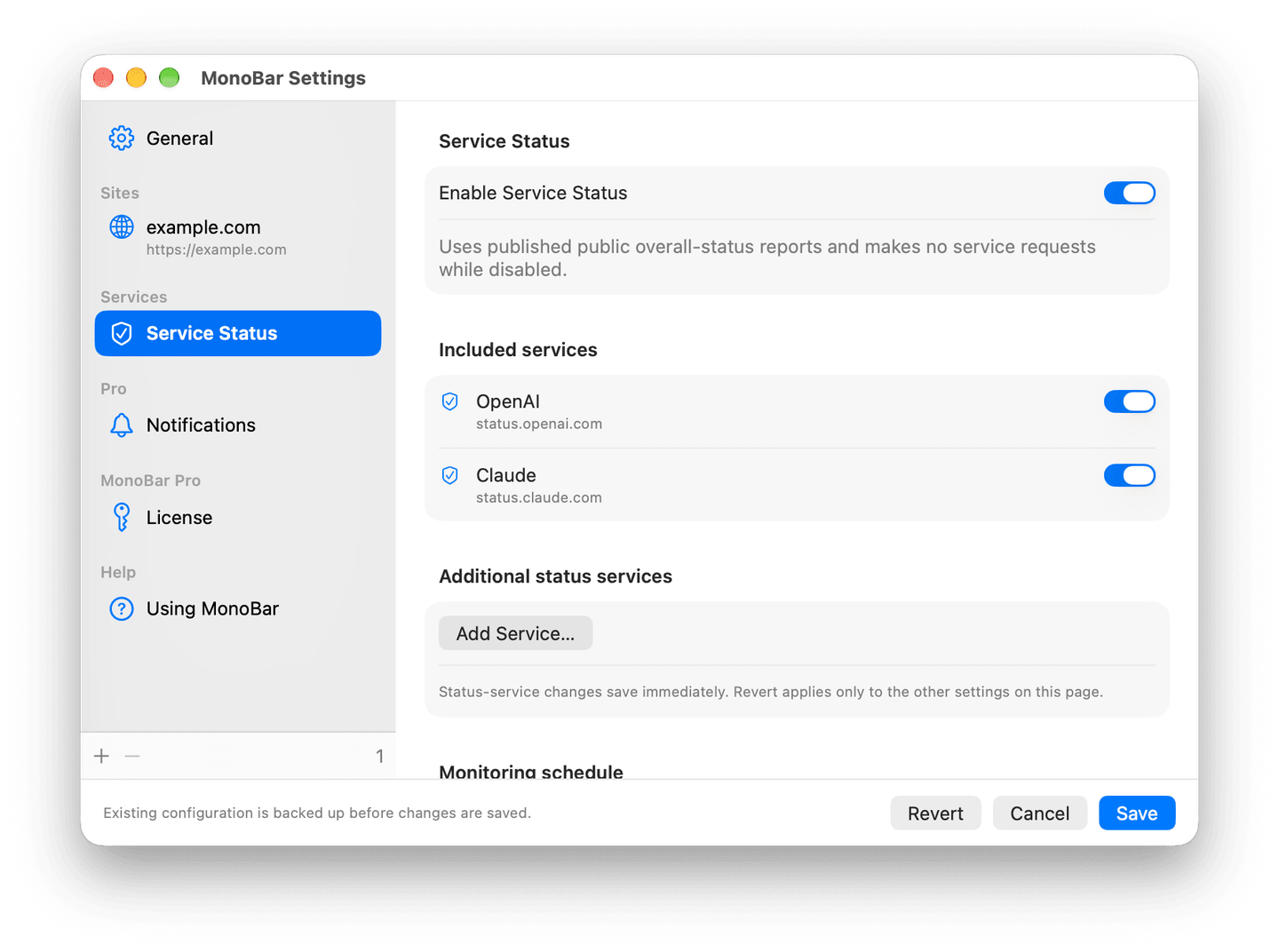
MonoBar can summarize the published status from OpenAI and Claude — useful if your work leans on them daily. Both are included and off by default: turn either service on in Settings and it appears in the Services tab. Pro supports up to 10 additional status services. These are the services’ own published reports, not independent verification.
With Pro, use Add Service to choose from MonoBar’s catalog, or Add by Status Page URL… for public Atlassian Statuspage, Instatus, and exact Slack Status API URLs. Arbitrary or private feeds are not supported.
Local notifications (Pro)
Local notifications are a MonoBar Pro feature and are off by default. Turn them on in Notifications settings, choose which websites and services participate, and allow notifications when macOS asks.
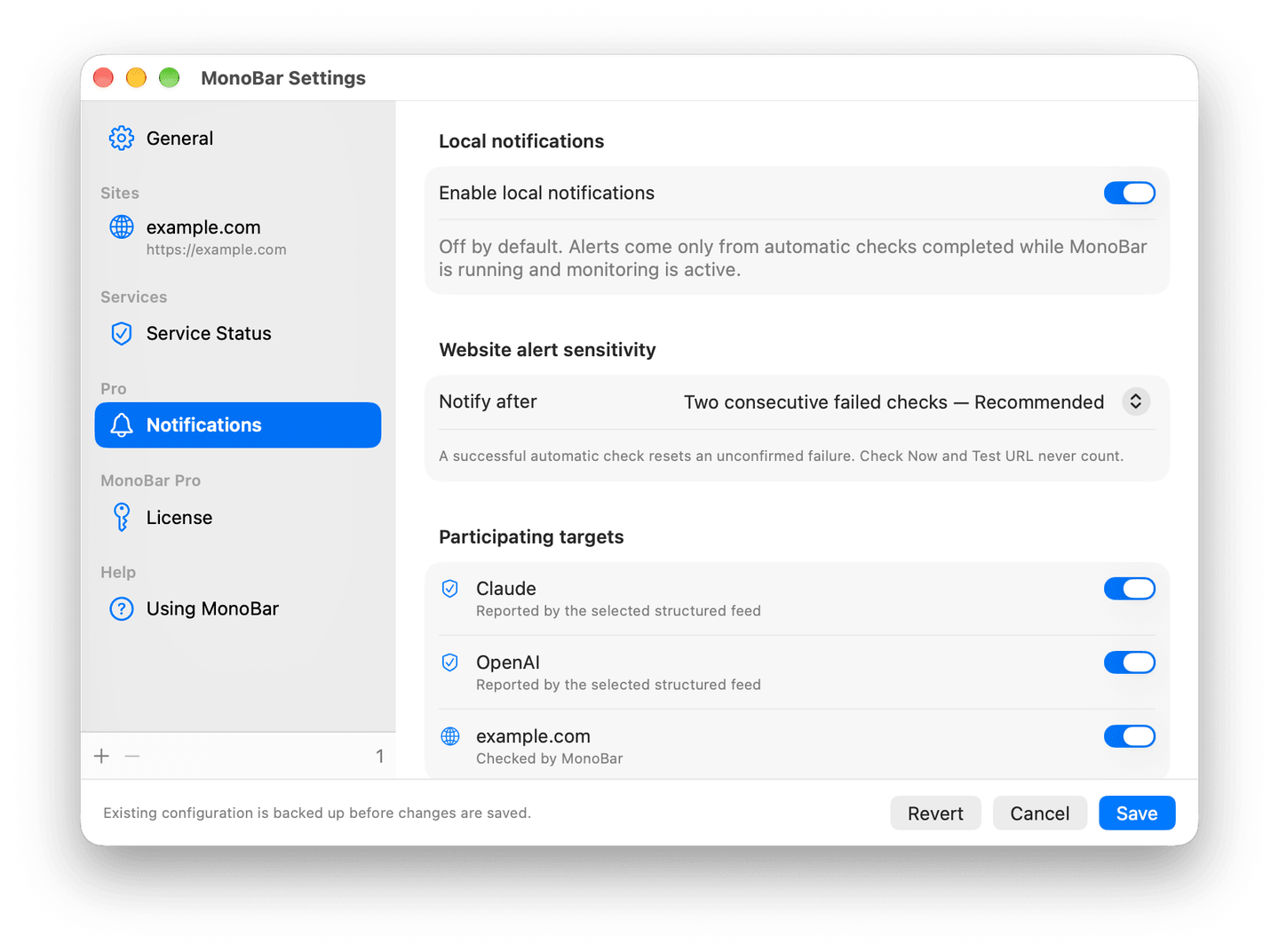
Alerts come only from scheduled checks completed while MonoBar is running and monitoring is active. Website alerts default to two consecutive failed checks; you can choose the first failed check instead. MonoBar can also notify you when a website becomes reachable again. Service notifications can tell you when a supported service publishes an incident and when it reports that incident resolved. Unknown and Maintenance do not become outage notifications, and Maintenance alone does not notify.
Check now and Test URL do not send notifications. Unknown and Maintenance service states do not trigger outage alerts.
Activating MonoBar Pro
To activate a Direct MonoBar Pro license, open Settings → License, paste the license key issued after purchase, and activate it while online. This explicit action contacts Polar. After activation, the entitlement is stored in Keychain and works offline; MonoBar does not make recurring or launch-time license checks.
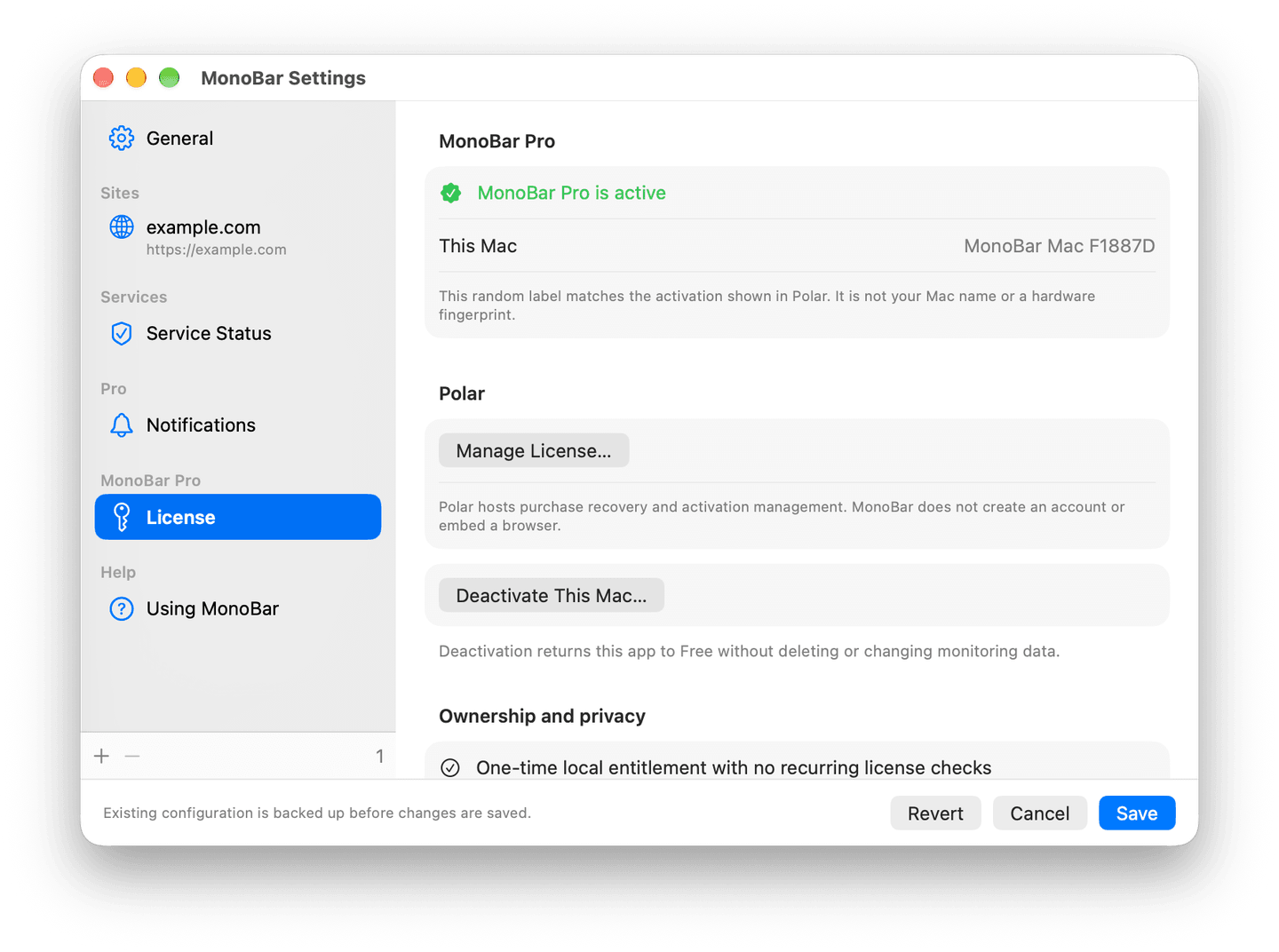
Polar emails the receipt and license and provides hosted purchase and license recovery and activation management. For problems with the app itself, contact Support—but never include your full license key.
When you no longer want this Mac activated, deactivate Pro from License settings while online. Deactivation contacts Polar and removes the local entitlement; your monitored sites, services, settings, and history remain.
What MonoBar doesn't do
- It doesn't watch your site 24/7 — checks run from your Mac while the app is running and monitoring is active. For always-on external monitoring with alerts, use a hosted service; MonoBar is a calm local companion and pairs happily with one.
- It doesn't monitor private/internal hosts, HTTP sites, or anything needing credentials.
Troubleshooting
- Checks fail but the site is up in a browser: if you run a firewall like Little Snitch or LuLu, allow MonoBar to make outgoing connections.
- "Website Needs Attention" in the menu-bar dashboard: your configured URL is no longer valid (for example, not HTTPS). Open Settings and correct it — MonoBar won't record false failures while the configuration is invalid.
- Numbers look different from these screenshots: MonoBar follows your system's region format.
2.4sand2,4 sare the same thing. - Need your version or build number: open Settings → General → Updates → Installed to see both. In Finder, Get Info remains a fallback.
Updating
MonoBar 1.2 includes optional signed update checking for Direct releases. Automatic checks can be turned off; when enabled, MonoBar checks at most once per rolling 24 hours, including while scheduled monitoring is paused. Check for Updates… starts a manual check. MonoBar only tells you when a new version is available. It never downloads or installs anything by itself.
To update: download the new version from the Changelog, quit MonoBar, and replace your existing copy wherever you keep it. MonoBar 1.0 has no update checker; updating it also requires this manual replacement. MonoBar 1.2 starts paused after replacement. Your settings and history stay where they are — they live in ~/Library/Application Support/MonoBar/, not inside the app.
Downgrading from MonoBar 1.1 to 1.0 is not supported on macOS 14. If an update causes a problem, quit MonoBar, preserve its local data, and contact Support instead of reinstalling 1.0.
Uninstall
Before uninstalling, turn off Open MonoBar at Login in Settings. If MonoBar Pro is active, deactivate it from License settings while the Mac is online. Then quit MonoBar and delete the app.
Remove ~/Library/Application Support/MonoBar/ if you also want the local settings and history gone. A Direct Pro license is stored separately in Keychain, and deleting the app does not deactivate it.